-
Samsung Galaxy S5 - Everything that is known
Latest update about the Launch of Samsung Galaxy S5
-

Ultimate Windows Keyboard Shortcuts
List of Ultimate Windows Key Board Shortcuts to increase productivity
-

Download Youtube vidoes for linux
How to download you tube videos on linux
-

Nexus Q gets Android 4.4
Nexus Q gets Android 4.4
-

Delete Cookies, Cache, history on all browsers
The shortcut to delete cache, cookies and histories works in Chrome, Explorer and firefox alike.
-

Apple iPhone 6 Rumors
iPhone 6 to be launched with 389 PPI Retina Ultra Retina Display and 0.22" Body


Showing posts with label Tech Windows. Show all posts
Showing posts with label Tech Windows. Show all posts
Tuesday, 6 November 2012

Tuesday, 25 September 2012
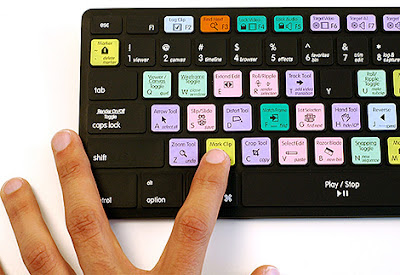
Ultimate Windows Keyboard Shortcuts
Anyone who has been using PC for a while
will definitely tell you that reaching out for the mouse for every small
thing is really frustrating. Why not learn some really cool windows
shortcuts which will make your life a lot easier. Apart from making you
work more efficiently and faster, you can also
impress your friends or colleagues by being able to work without a
mouse. Shutdown down system real quick, Bring desktop in a second,
access system properties in a jiffy, Super fast copy, Prevent Autoplay
with a single key and much more. Keep Reading.


Thursday, 20 September 2012
Make your Computer Welcome you by Speaking!
So, Do you love watching Sci-fi movies? A great part is when futuristic computers welcome a user with voice. Doesn't it feel great. Well if you too like it the way i do, don't worry - you don't need to have a time machine for such a feature. It can be achieved in your Good Ol windows system without using any software!
Surprised! Well Read On

Surprised! Well Read On

Ultimate Windows Text Selection and Copying Shortcuts
Most of our times in office is spend on Viewing various documents and selecting and copying various elements from them. There is a joke going around in my office which says that only thing people do in office in Ctrl+ C and Ctrl + V! Now this might be an exaggeration by any standards, but this Post gives you incredible keyboard tricks for selecting, copying and Pasting data which will greatly increase your productivity. Interested! Read On.

Wednesday, 19 September 2012
Ctfmon.exe - What is it and how to Remove it.
You might have noticed a process with the name ctfmon.exe when opening
the task manager wondering what it was doing and if it was malicious or
harmful in any way. You might be frustrated with
the ctfmon.exe process that just won’t stop opening no matter what you
do. You remove it from the Startup items and it just magically
reappears. So what is it? If you have a computer which isn't too great in terms of its processing powers and the resources that it has. A genuine question is what exactly is ctfmon.exe and why is it always running in my system? Another serious question would be do i really need it and if not, them how do i get rid of it! Don't Worry Read this Post and you'll find out Everything about ctfmon.exe and how to get rid of it

Tuesday, 18 September 2012
Password Protect folders in Windows without using any Software
Each one of have some files which we don't want to share with the entire world. One method to protect your files is hiding but anyone can easily unhide them. Also using a third Party solution for password protecting the file is an option but you do not want such programs to show on your Installed Programs list as it might appear suspicious.
So, why not do something creative this time and create an application of your own which will hide your folders in windows. Don't Worry! its no fancy stuff. You just need to follow the instructions. Also, only Notepad is needed for the hack to work.
So, why not do something creative this time and create an application of your own which will hide your folders in windows. Don't Worry! its no fancy stuff. You just need to follow the instructions. Also, only Notepad is needed for the hack to work.
 |
| Password Protect your Folders in Windows |
Step by Step Recording of PC Problems for Troubleshooting
So, are you one of the tech experts in circle. After reading our blogs, i guess u must be regarded as a Tech Guru bu your friends and family. As the local PC guru you're probably very used to friends and family
asking for help with their computer problems, yet having no idea how to
clearly describe what's going on. I remember, many of my friends calling me on phone describing their problems. Now i have to explain them everything which can be quite frustrating both for me and my friends, if they are a novice computer user. It's frustrating, but Microsoft feels
your pain, and Windows 7 includes an excellent new solution in the
Problem Steps Recorder.

View Bigger Thumbnails in XP
Still using XP? Xp is one of the most used Operating systems and is still used my many people. Now Microsoft announced some great visual features with Vista and Windows 7 which were not introduced for XP. However, you can still use most of them either by using 3rd party Software or by employing certain hacks. So here is the hack for Viewing thumbnails of bigger size in XP.

Backup and Restore Registry in Windows
Registry Editor is an advanced tool for viewing and changing settings in your
system registry, which contains information about how your computer runs. Almost anything cam be achieved by editing the registry but keep in mind- most of the important system settings are stored inside the Registry. Making incorrect changes in the registry can crash your
system. It's highly advisable to backup the registry before editing any portion of it. So, here are three methods for safe backing and restoring of your System Registry. All methods are Working for all Windows Versions including Windows 7


Monday, 17 September 2012
Increase Computer Speed Using USB Devices
So, Everyone out there who is frustated with teh spped of their computers. They way technology is progressing these days, our old computers are getting outdated at a faster pace than ever. So what to do if you have a slow or old computer. Well, the best option would be to upgrade your RAM. it is cheapest method to increase computer performance and has the maximum impact, But if you do not want to spend even a penny, here is a solution for you. You can Use your External devices like memory cards or pendrives as an external Page file(or Cache memory) to boost up your PC Speed. If your ram is anything less than 1 GB, this method will make drastic changes in your PC Performance.
There are two ways of Doing it. Either using Software or by manual. Both methods are pretty simple. If you are using Windows Vista or later, Software method is pretty good. In Xp, you get limited options but cna do so using Manual method. So get ready to increase your Computer speed for Free:

One very cool feature of Windows Vista – especially for machines not natively equipped with the kind of horsepower to fully enjoy the rich visuals of Windows Presentation Foundation (Avalon) applications is ReadyBoost. ReadyBoost enables you to plug a USB key into your machine and have Windows Vista use it as memory. To start Ready boost, Just plug your USB device into your PC. I use my old 2 Gb San Disk Pen drive for this purpose. You can use memory card as well. If auto play is not working, just go to Start and type Ready boost. With ready boost, your Pen drive's Auto play will give an option of Using it with ready boost with the message Speed up my system.
Click on that and you are ready to Go. Select cache size, Auto play and other options. Now whenever your system does not have enough memory, it will go to cache of your Pendrive.
EBoostr (Windows Xp,Windows Vista, Windows 7)

Ready Boost is not available on old version of windows. So if you are using XP, Microsoft has nothing for you. Well, the good thing is we do care and i personally find Xp, the best OS from Microsoft. So what to do? There is a Software called eBoostr which work similarly to Ready boost. You can specify cache size, auto play etc. But its free version is available for 1 month only. But it gives you another month after that. And then you can uninstall and reinstall to use it again.
1) Go to Start. Right Click My Computer >> Properties >> Advanced . A window will open like the one shown below
2) Click on Performance and then go to Advanced. Now in this window Click on Advanced Tab and then on the Change button.

3) Now select the Pendrive or Memory Card and choose the Option Custom Size.
4) Now acording to the Memory available in the selected Pendrive, fill the Initial size and Maximum size with the required Size and Click on OK
5. Its Done and you have increased your PC's Page file. The Computer will show great increase in Speed.You didn't had to spend money for purchasing a new RAM.
 |
| Increase your PC Speed |
There are two ways of Doing it. Either using Software or by manual. Both methods are pretty simple. If you are using Windows Vista or later, Software method is pretty good. In Xp, you get limited options but cna do so using Manual method. So get ready to increase your Computer speed for Free:
1. Using Software to Increase PC Speed:
Ready Boost: (Windows Vista/Windows 7):One very cool feature of Windows Vista – especially for machines not natively equipped with the kind of horsepower to fully enjoy the rich visuals of Windows Presentation Foundation (Avalon) applications is ReadyBoost. ReadyBoost enables you to plug a USB key into your machine and have Windows Vista use it as memory. To start Ready boost, Just plug your USB device into your PC. I use my old 2 Gb San Disk Pen drive for this purpose. You can use memory card as well. If auto play is not working, just go to Start and type Ready boost. With ready boost, your Pen drive's Auto play will give an option of Using it with ready boost with the message Speed up my system.
Click on that and you are ready to Go. Select cache size, Auto play and other options. Now whenever your system does not have enough memory, it will go to cache of your Pendrive.
EBoostr (Windows Xp,Windows Vista, Windows 7)

Ready Boost is not available on old version of windows. So if you are using XP, Microsoft has nothing for you. Well, the good thing is we do care and i personally find Xp, the best OS from Microsoft. So what to do? There is a Software called eBoostr which work similarly to Ready boost. You can specify cache size, auto play etc. But its free version is available for 1 month only. But it gives you another month after that. And then you can uninstall and reinstall to use it again.
2. Manually Increasing Page File Size to Speed by Computer
1) Go to Start. Right Click My Computer >> Properties >> Advanced . A window will open like the one shown below
 |
| Go to Advanced Properties to increase your Page File Size |
2) Click on Performance and then go to Advanced. Now in this window Click on Advanced Tab and then on the Change button.

3) Now select the Pendrive or Memory Card and choose the Option Custom Size.
4) Now acording to the Memory available in the selected Pendrive, fill the Initial size and Maximum size with the required Size and Click on OK
5. Its Done and you have increased your PC's Page file. The Computer will show great increase in Speed.You didn't had to spend money for purchasing a new RAM.
Popular Posts
-
 You might have noticed a process with the name ctfmon.exe when opening the task manager wondering what it was doing and if it was malicio...
 -
 S o, Have you ever been in a situation where you are behind a VPN or a firewall?Yes?. If you ever are in the situation of being stuck beh...
 -
 Yesterday during the three hour keynote at Google I/O 2013, the company revealed Hangouts, a cross platform messaging app that unifies mos...
 -
 So, This Post goes to all the Apple Loyalists out there! Have you upgraded to iOS 6 yet? if not, you should do so quickly. Its really grea...
 -
 It’s holiday time, and what better way to reward your favorite programmer geek than with a T-shirt? Or if you are a geek yourself, wear ...
 -
 Keyboards usually have small LED's which indicate whether different types of locks are activated or not. Now, why not make some crea...
 -
 Today at Google I/O 2013 the company showed off some significant changes that they have made to Google Maps. The popular maps service has b...
 -
 So, Everyone out there who is frustated with teh spped of their computers. They way technology is progressing these days, our old computers...
 -
 US is constantly being challenged in lots of fields by the likes of Brazil, china, India and Russia. China is currently has the maximum nu...
 -
 Nowadays, Android phone manufacturers are setting their sights on Samsung as their Galaxy S series seem to be the smartphones to beat. Pan...
Social Icons


